How to Block or Limit YouTube on Chrome
Last updated:
Quick answer
Chrome has no built-in website blocker or per-site time limit. Install SiteKeeper, add www.youtube.com, and set a daily limit of 0 hours and 0 minutes to block YouTube, or 30 minutes to cap it.
Without an extension, Family Link on a supervised account, Chrome's URLBlocklist policy, the hosts file, or router and DNS filtering can block YouTube. None of them is a daily minute budget in ordinary Chrome.
Limit or block YouTube with SiteKeeper
SiteKeeper sets that budget in desktop Chrome. It is privacy-first; we never sell or share your data. It is a Chrome extension only: limits and history do not sync, and there is no phone app.
Set a daily limit, for example 30 minutes
Do this from the popup on www.youtube.com. The same controls take any other daily cap.
1Install SiteKeeper in Chrome
Install SiteKeeper from the Chrome Web Store. The toolbar badge then shows today's minutes for the site in the active tab.
2Open the popup on www.youtube.com
Go to
www.youtube.comand click the SiteKeeper icon. The popup shows today's time on that hostname and a Set Limit button.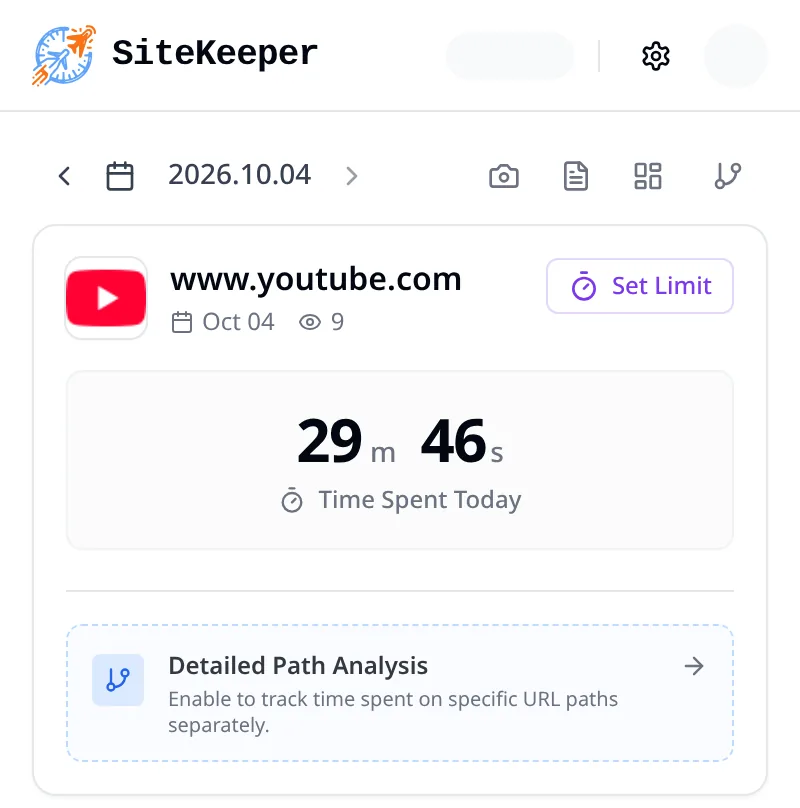
The popup on www.youtube.com shows today's time on this hostname and Set Limit. 3Turn on Limit Web Time and set 30 minutes
Click Set Limit and turn Limit Web Time on. Set 0 hours and 30 minutes, or choose the 30m preset. The other daily presets are 10m, 1h, 2h, and 3h. Hours run from 0 to 23 and minutes from 0 to 59.
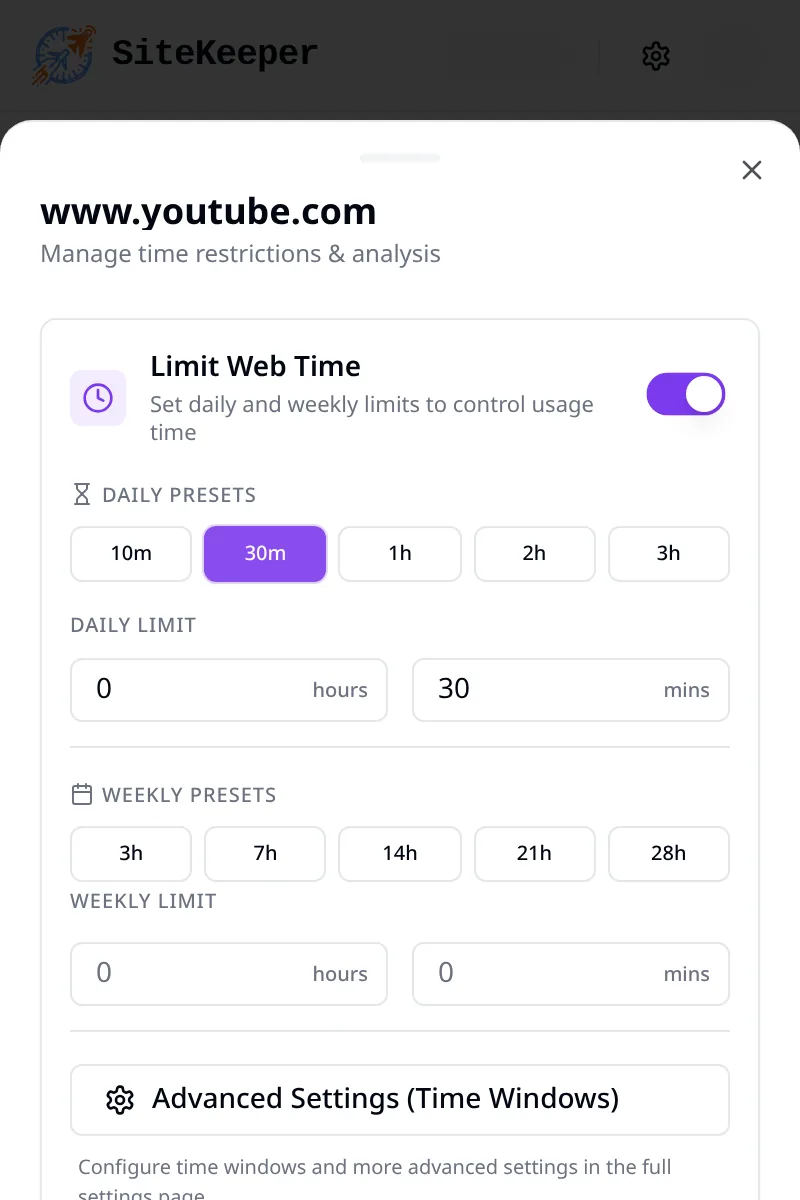
Limit Web Time is on, with the 30-minute daily preset. 4Click Save Changes
Click Save Changes. The popup saves the limit for the hostname of the tab you are on, which is
www.youtube.com. If you add YouTube from the options page instead (Settings, Limited Sites, Add Site), typewww.youtube.comin full or pick it from your most visited sites. The dialog's hint says to leave out www, but SiteKeeper matches the exact hostname, and a row saved asyoutube.comnever fires, becauseyoutube.comredirects towww.youtube.com.When today's time on that host reaches the limit, this tab and later visits open the block page. The counter resets at local midnight.
Block YouTube completely with a 0-minute limit
There is no separate always-block list. A daily limit of 0 hours and 0 minutes is the block.
1Turn Limit Web Time on for www.youtube.com
Use the same popup, still on
www.youtube.com. Turning the switch off removes the limit. It does not mean block forever.2Leave the daily fields at 0 and 0
Leave both daily fields at 0, with no preset selected, and click Save Changes. With the switch on and both fields at 0, the daily budget is zero seconds.
3Open YouTube once
The block starts after one visit, because 0 seconds already meets a 0-second limit. That first visit can show YouTube for about a second, then redirect. Later visits open the block page immediately, including on later days, because each day still starts at 0 seconds.
Add a weekly limit
A weekly limit is optional and free, on the same screen as the daily limit. Hours run from 0 to 168, plus minutes. Presets are 3h, 7h, 14h, 21h, and 28h. The week is Monday through Sunday, and the host blocks when that week's time hits the cap, even if today is under the daily limit. One hostname is one of six free sites whether you set daily, weekly, or both. Pro removes the cap.
Block YouTube during work hours
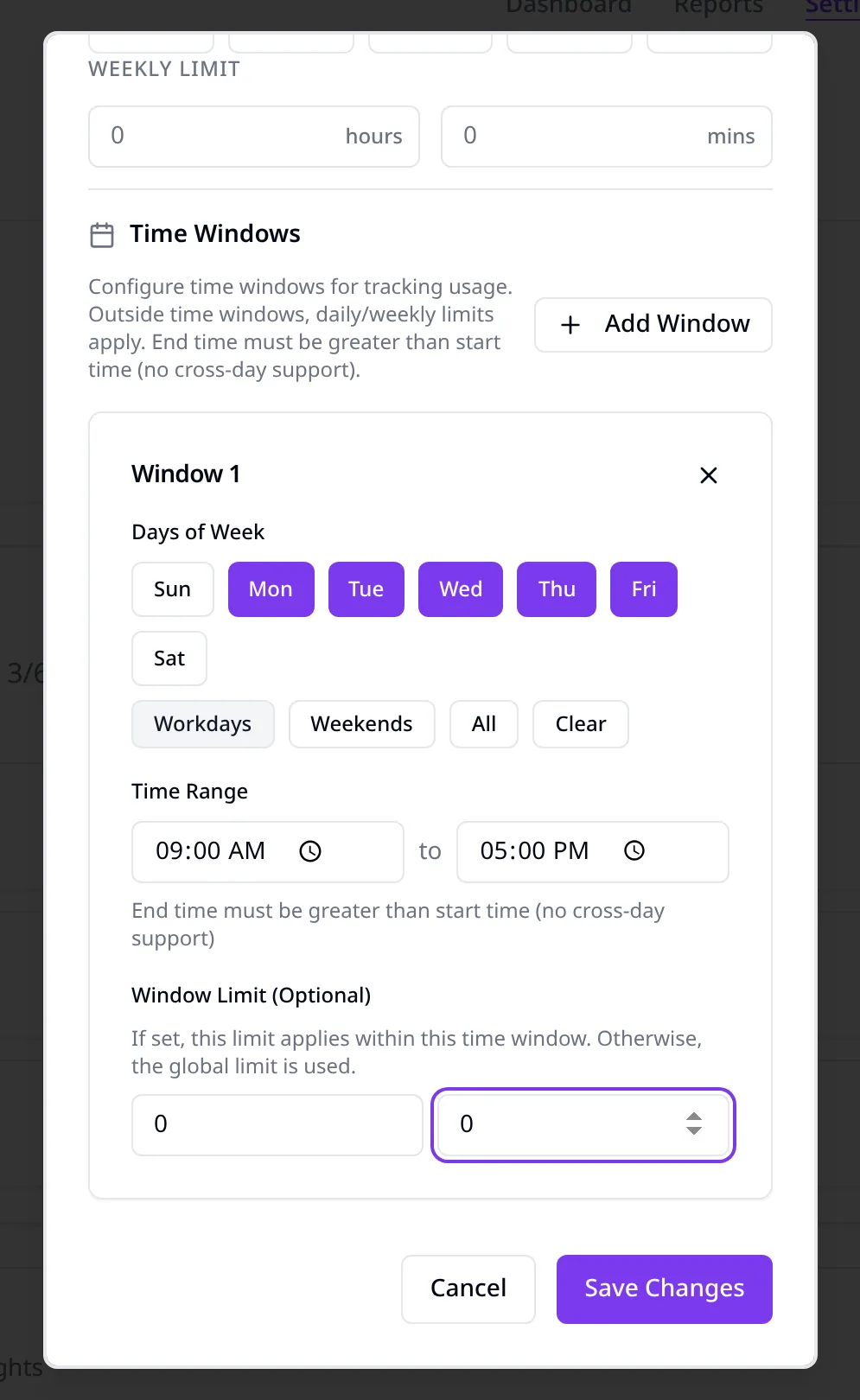
Open Advanced Settings (Time Windows) from the popup, or edit the site on the options page. Pick Workdays, Weekends, or All, then a start and an end on the same day. A window cannot cross midnight, so 9:00 PM to 1:00 AM is two windows.
A window limit counts only time inside that window. Set it to 0 hours and 0 minutes to block the site for the whole window, as in the Monday–Friday 9:00 AM to 5:00 PM example. Outside the window, the daily and weekly limits still apply. A window with no limit of its own uses those same caps.
What you see when time runs out
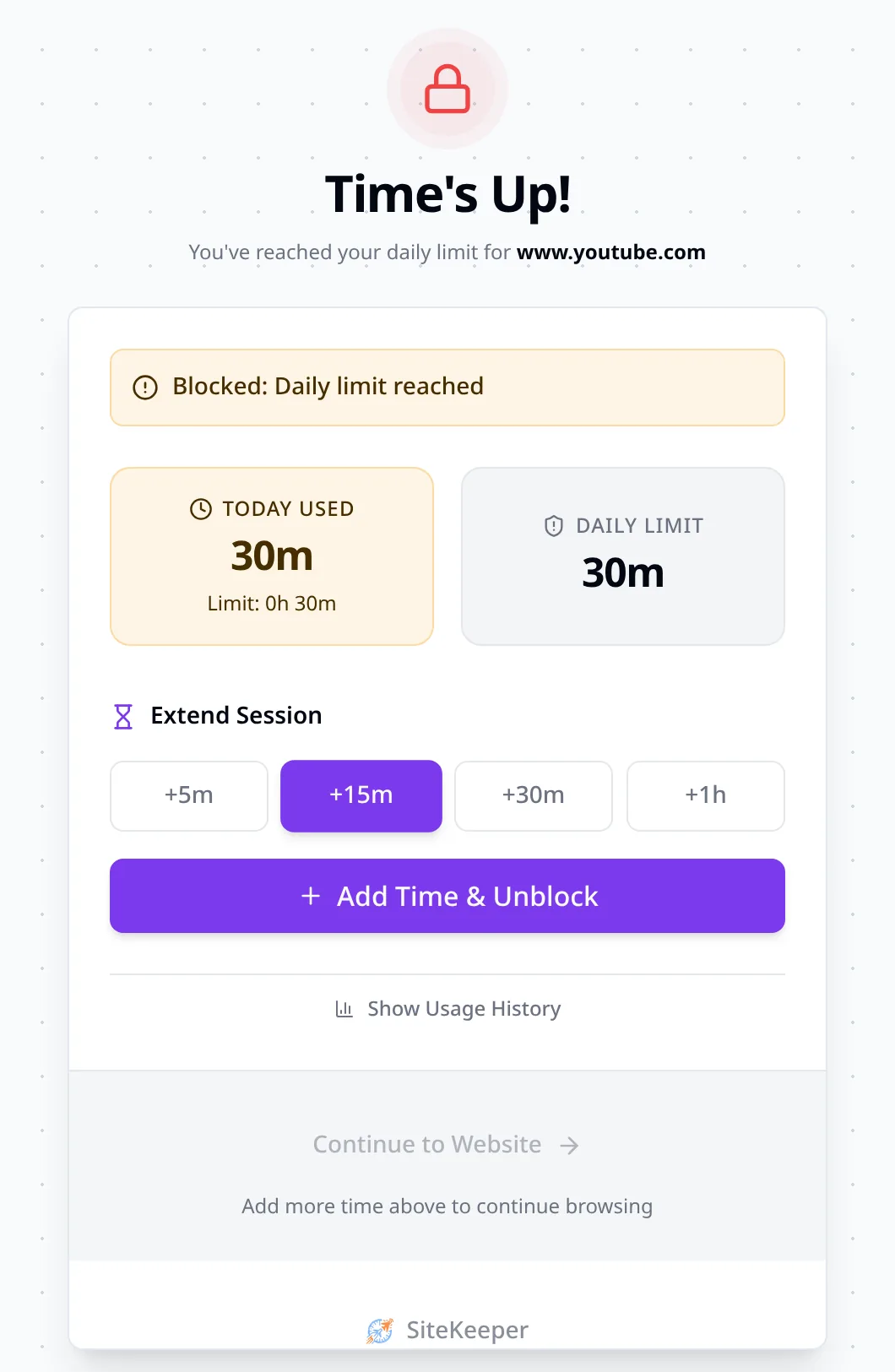
The page is titled Time's Up. It names the reason (daily, weekly, or time window) and shows time used against the limit, including weekly numbers when a weekly limit is set. Extend Session is +5m, +15m, +30m, and +1h. Add Time & Unblock adds that amount to the saved limit. It is not a snooze: 30 minutes plus 15 stays 45 until you lower it.
Continue to Website stays disabled until the cap is no longer exceeded. Show Usage History is 7 days. You can turn the limit off or disable the extension. There is no password. For a child, use Family Link or the Chrome policy below.
YouTube hostnames, Shorts, and what the limit covers
Each limit matches one exact hostname. YouTube uses several.
Limit www.youtube.com, not a path
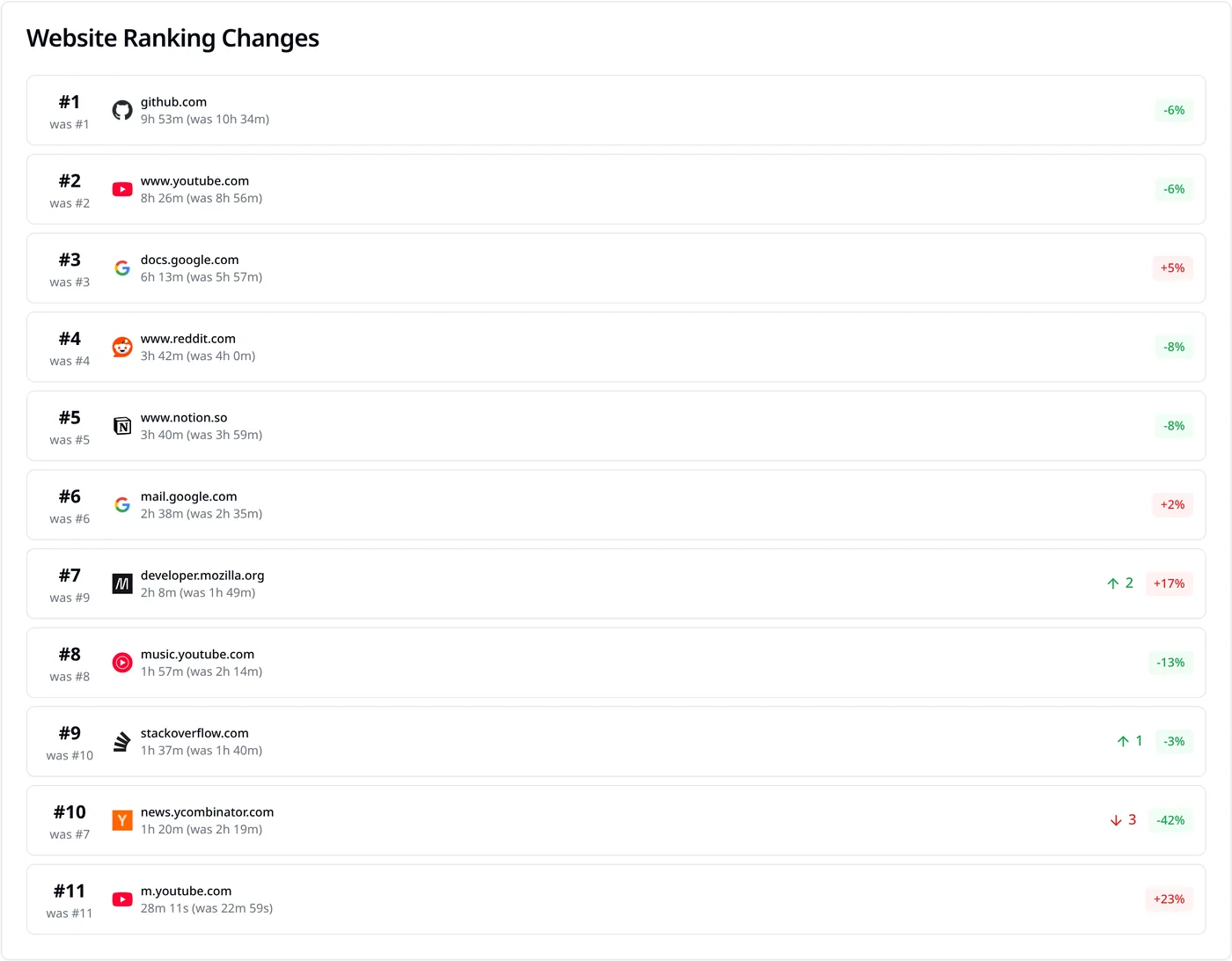
Desktop YouTube is www.youtube.com. /watch, /shorts, and the homepage share one clock. You cannot limit only Shorts or hide the shelf. Path Analysis, free on up to 3 sites, can show /shorts versus /watch. It only tracks.
m.youtube.com and youtu.be on desktop Chrome
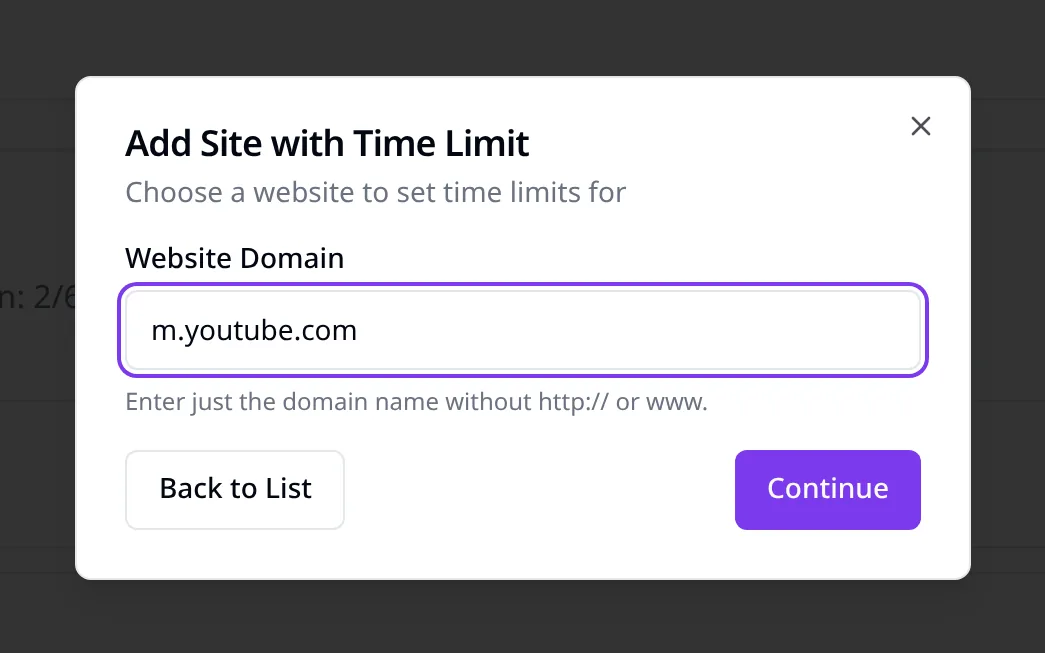
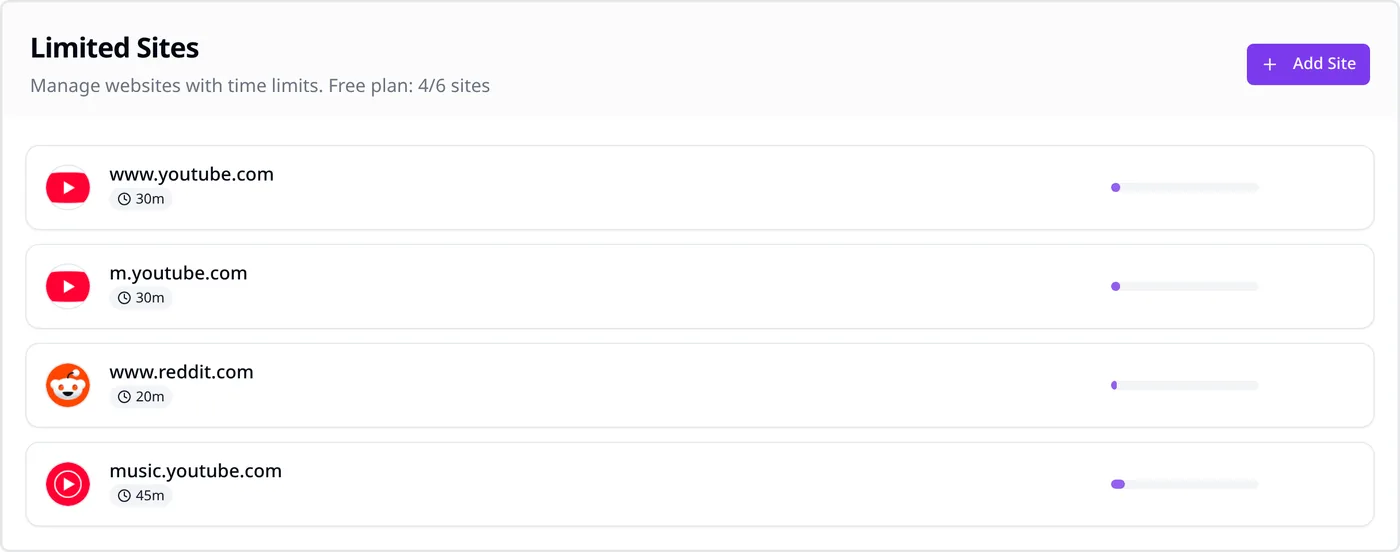
On desktop Chrome, m.youtube.com redirects to www.youtube.com/?app=desktop (302), and a youtu.be link redirects to www.youtube.com/watch (303). The www.youtube.com limit covers both after the redirect. Adding m.youtube.com is optional, uses one free slot, and has its own clock.
YouTube Music is a third hostname
music.youtube.com needs its own limit and its own free-plan slot. Time there does not count toward www.youtube.com.
Embedded videos stay on the other site
A YouTube player on another site, including youtube-nocookie.com, is not blocked and is not counted. Blocking applies to top-level page loads, and tracking follows the active tab's hostname. To stop embeds too, block both youtube.com and youtube-nocookie.com with URLBlocklist, DNS filtering, or the hosts file (in the hosts file, list each exact name, such as www.youtube.com and www.youtube-nocookie.com).
Active time, not the length of the video
Time ticks once a second on the active tab of the focused window, and only while you are active. After 15 seconds without keyboard or mouse input, or when the screen locks, counting pauses. Background tabs are not counted, so a hands-off video can record less than it lasts. For a hard stop, use a 0-minute daily limit or a 0-minute window.
Incognito, other browsers, and the YouTube app
SiteKeeper has no official Incognito support. Chrome turns extensions off there unless you enable Allow in Incognito at chrome://extensions, under SiteKeeper, then Details, and we do not promise that mode. To close Incognito, set IncognitoModeAvailability to 1 or use Family Link. The extension does not run in other browsers, the YouTube app, or on a phone or TV, and limits do not sync.
Block YouTube without an extension
None of these four options is a per-site YouTube timer in ordinary Chrome. Use one when the block page must not be able to undo the block.
Family Link on a supervised account
In the Family Link app, open the child, then Controls, then Google Chrome and Web, then Manage sites, then Blocked sites. Add www.youtube.com and include the www. Add the domain youtube instead if you want every subdomain, including www, m, and music.
Android and Chromebook are fully supervised. On Windows, Mac, and Linux it applies only while the child is signed into that Chrome profile, and they can sign out or use another browser. Family Link blocks. It has no YouTube daily timer in Chrome. Device screen time on Android and Chromebook is a device budget. Take a break in the YouTube app is only a reminder.
Chrome URLBlocklist policy
URLBlocklist works on a personal computer and needs an administrator. It blocks matching URLs. It has no time limit. youtube.com also matches subdomains, so www, m, and music are included. Add youtu.be too. It is not a subdomain of youtube.com.
On Windows, add string values under HKEY_LOCAL_MACHINE\SOFTWARE\Policies\Google\Chrome\URLBlocklist. Name 1 is youtube.com. Name 2 is youtu.be. On macOS, deliver the same policy with a configuration profile for com.google.Chrome. On Linux, put a JSON file in /etc/opt/chrome/policies/managed/:
{
  "URLBlocklist": ["youtube.com", "youtu.be"]
}
Open chrome://policy and reload. Chrome then shows This Device is managed by your organization. Set IncognitoModeAvailability to 1 if you also want Incognito off. The block is Chrome-only.
Hosts file on this computer
The hosts file stops those names from resolving for every browser on that computer. It has no schedule, no time limit, and no wildcards, so each name needs a line. On Windows, edit C:\Windows\System32\drivers\etc\hosts in Notepad opened as administrator. On macOS and Linux, edit /etc/hosts with sudo.
0.0.0.0 youtube.com
0.0.0.0 www.youtube.com
0.0.0.0 m.youtube.com
0.0.0.0 music.youtube.com
0.0.0.0 youtu.be
Flush DNS afterward. On Windows run ipconfig /flushdns. On macOS run sudo dscacheutil -flushcache and sudo killall -HUP mDNSResponder. Clear Chrome at chrome://net-internals/#dns and restart it. A VPN or a proxy can bypass the file.
Router or DNS filtering
Block youtube.com in the router's parental controls or with a filtering DNS service. Every device on that Wi-Fi is covered, including the YouTube app, and some routers can schedule it. Mobile data and other networks are not. Chrome's Use secure DNS setting (Settings, Privacy and security, Security) or a VPN can bypass the router. Point secure DNS at the same provider, or turn it off.
Compare ways to block or limit YouTube
SiteKeeper is the easiest method to undo. That suits your own profile and fails as a lock.
SiteKeeper
- Cost
- Free for 6 sites. Pro drops the cap ($4.99/mo, $24.99/yr, $29.99 lifetime).
- Daily time limits
- Yes, per hostname. 0 minutes blocks it.
- Covers Incognito
- No. Not officially supported.
- Covers other browsers and devices
- This Chrome only.
- How easy to undo
- Easiest. Add time, turn it off, or disable it. No password.
- Best for
- A daily cap you can undo yourself.
Family Link
- Cost
- Free.
- Daily time limits
- No Chrome timer. It blocks.
- Covers Incognito
- Can close private windows on a supervised account.
- Covers other browsers and devices
- Full on Android and Chromebook. Desktop: that Chrome sign-in only.
- How easy to undo
- A parent changes it. A child on a computer can switch profiles.
- Best for
- A supervised child.
Chrome URLBlocklist
- Cost
- Free. Needs an admin account.
- Daily time limits
- No. Blocked entirely.
- Covers Incognito
- Only with IncognitoModeAvailability set to 1.
- Covers other browsers and devices
- That Chrome install. Subdomains included.
- How easy to undo
- An admin removes the policy.
- Best for
- A hard block in Chrome.
Hosts file
- Cost
- Free. Needs an admin account.
- Daily time limits
- No.
- Covers Incognito
- Yes, unless a VPN or proxy bypasses it.
- Covers other browsers and devices
- Every browser on this computer.
- How easy to undo
- Edit the file as admin and flush DNS.
- Best for
- Every browser on one PC.
Router or DNS filtering
- Cost
- Often free on the router.
- Daily time limits
- No timer. Some routers can schedule it.
- Covers Incognito
- Yes, unless secure DNS or a VPN bypasses it.
- Covers other browsers and devices
- Every device on that Wi-Fi, including the app. Not mobile data.
- How easy to undo
- Change the router, or leave the network.
- Best for
- The whole home network.
When to block YouTube and when to limit it
Use 0 hours and 0 minutes when YouTube should not open. Use a daily cap such as 30 minutes when you still want one video. The cap is active time, so a hands-off video can run longer than the number you set.
Combine them for a workday. A 0-minute window, Monday to Friday 9:00 AM to 5:00 PM, blocks those hours, and the daily limit still applies in the evening. A weekly cap such as 3 hours stops long evenings from stacking. If you will raise the limit from Time's Up, use Family Link, URLBlocklist, or the hosts file instead.
Troubleshooting
If YouTube still opens, check the hostname first, then Incognito, then whether you are in this Chrome profile.
YouTube still opens after you set a limit
Cause: The row is not www.youtube.com, or Limit Web Time is off. A youtube.com row never matches.
Fix: Check the popup on www.youtube.com and delete any youtube.com row.
YouTube flashes, then the block page appears
Cause: The first visit with a 0-minute limit can load for about a second.
Fix: Later visits should open Time's Up. If not, set the daily limit back to 0 and 0.
YouTube Music or an embedded video still plays
Cause: music.youtube.com and embeds sit outside the www.youtube.com limit.
Fix: Add Music as its own site. For embeds, block youtube.com and youtube-nocookie.com with URLBlocklist, hosts, or DNS.
Shorts are still on the page
Cause: /shorts shares the www.youtube.com limit. SiteKeeper cannot hide the Shorts shelf.
Fix: The www limit already includes Shorts. Path Analysis only shows the split.
It works in a normal window, not in Incognito or on your phone
Cause: The extension is Chrome-only and off in Incognito by default.
Fix: Close Incognito with policy or Family Link. Use hosts or router DNS for other browsers and devices.
SiteKeeper will not save another YouTube hostname
Cause: Free accounts get 6 hostnames, and each YouTube host uses one.
Fix: On desktop, drop optional m.youtube.com, or use Pro to remove the cap.
Frequently asked questions
Can Chrome block YouTube without an extension?
Not on a normal profile. Family Link, URLBlocklist, the hosts file, and router DNS can block it. None of them is a 30-minute timer in ordinary Chrome.
Does a limit on www.youtube.com cover Shorts, youtu.be, and YouTube Music?
Shorts share the www.youtube.com limit, and SiteKeeper cannot block only Shorts. On desktop, youtu.be and m.youtube.com redirect there. music.youtube.com and embeds do not.
Why does a limit saved as youtube.com do nothing?
Desktop YouTube is www.youtube.com. A limit saved as youtube.com never matches, so type the www host even if the dialog says to omit it.
Will SiteKeeper block YouTube in Incognito?
No. Incognito is not officially supported. Set IncognitoModeAvailability to 1, or use Family Link, if Incognito must stay closed.
What does Add Time & Unblock actually change?
It raises the saved limit for good. Adding 15 minutes to a 30-minute cap makes it 45 until you set it back.
Can I block YouTube during work and allow it in the evening?
Yes. A 0-minute weekday window blocks work hours, and the daily limit still applies in the evening. A window with no limit does not block by itself.
Will this stop a child from opening YouTube?
No. There is no password, and Add Time raises the limit. On Windows, Mac, and Linux, Family Link applies only while the child stays signed in to the supervised Chrome profile. URLBlocklist stays with that Chrome install.
Why is YouTube time lower than the length of the video?
Idle time after 15 seconds is not counted, and neither is a locked screen or a background tab. Use a 0-minute limit or window for a hard stop.
Set a YouTube limit in Chrome
Add www.youtube.com, turn on Limit Web Time, and set 30 minutes or 0 minutes. Daily limits, weekly limits, and time windows are covered on website time limits, and you can install SiteKeeper from the Chrome Web Store.
Other guides
Block or limit Reddit on Chrome with a 30-minute daily cap or a 0-minute block in SiteKeeper, plus old.reddit.com, Family Link, URLBlocklist, hosts, and DNS.
Block or limit TikTok on Chrome with a 10-minute daily cap or a 0-minute block in SiteKeeper, plus Family Link, URLBlocklist, the hosts file, and DNS.
Limit or block www.instagram.com on Chrome with a 30-minute cap or a 0-minute block. Reels and DMs share it. Family Link, URLBlocklist, hosts, and DNS.
Block or limit X on Chrome with a 30-minute daily cap or a 0-minute block in SiteKeeper, plus Family Link, URLBlocklist, the hosts file, and DNS.
Set a 30-minute Facebook limit on Chrome, or block www.facebook.com with SiteKeeper. Also covers Family Link, URLBlocklist, the hosts file, and DNS.
Set a 60-minute Netflix cap on Chrome, or block www.netflix.com in SiteKeeper. Also covers Family Link, URLBlocklist, the hosts file, and DNS.
Set a 30-minute Discord limit on Chrome, or block discord.com with SiteKeeper. Also covers Canary, Family Link, URLBlocklist, the hosts file, and DNS.
Set a 30-minute Twitch limit on Chrome, or block www.twitch.tv with SiteKeeper. Also covers clips, Family Link, URLBlocklist, the hosts file, and DNS.
Set a 30-minute LinkedIn limit on Chrome, or block www.linkedin.com with SiteKeeper. Also covers Family Link, URLBlocklist, the hosts file, and DNS.